

Analytics Dashboard
The Analytics dashboard helps you monitor message engagement, lead responsiveness, and AI performance over time — giving you insight into what’s working and what needs improvement. > Navigate to Analytics in the left sidebar of your Arnio dashboard.
Response Rate
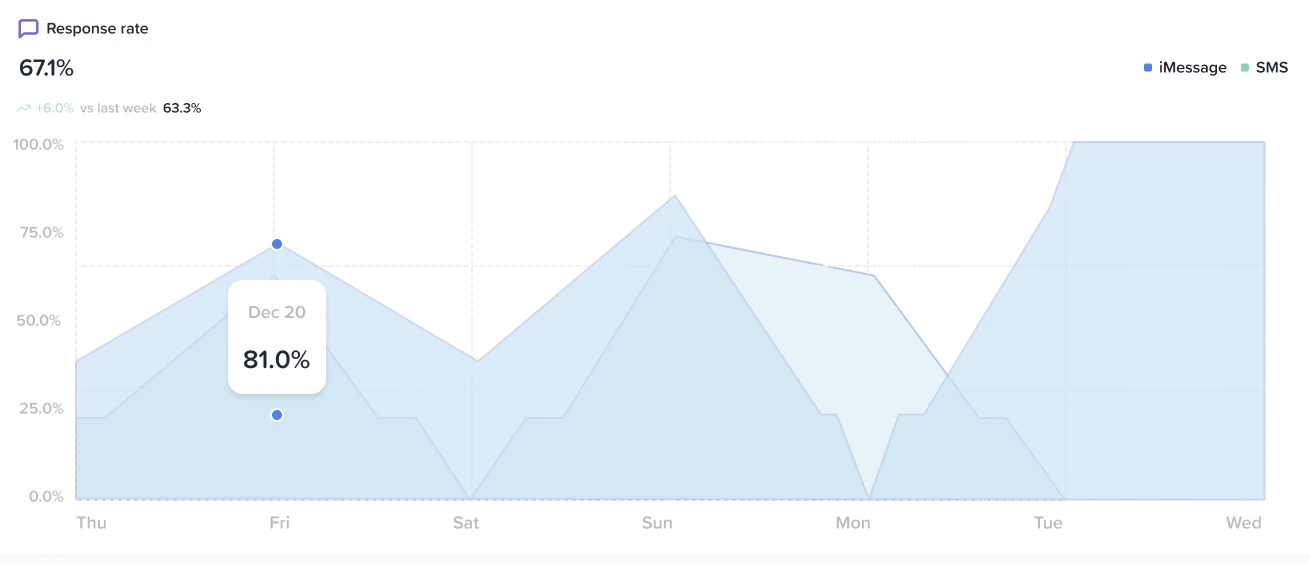
Definition: The percentage of messages that received a response (from the lead or from your AI/human team).- Split by iMessage and SMS
- Use the graph to view response trends across days
- Hover to view exact percentages for each day
- Split by iMessage and SMS
- Use the graph to view response trends across days
- Hover to view exact percentages for each day
Total Conversations
Shows how many new conversations were initiated during the selected time range.- Compare performance with previous periods
- Helps identify campaign engagement or drop-off

Average Time to Response
This metric tracks how long it takes your AI or team to respond to incoming messages.- Lower is better (especially for first-touch replies)
- Helps you optimize response windows and AI timing

Pickup Rate (Coming Soon)
The percentage of conversations that continued after the first reply.- Indicates how effective your opener and follow-up strategy is)
- Influenced by message timing, personalization, and offer quality

Speed to Dial (Coming Soon)
Tracks the time between lead inquiry and your team dialing them (if applicable).- Helps sales teams optimize handoff and follow-up actions
- Lower times correlate with higher close rates

Number of Calls (Coming Soon)
Tracks how many calls were made from within the platform (if calling is enabled).- Use this to gauge outbound activity
- Combine with Speed to Dial for context

Unresponded Messages
Messages that received no reply from your AI or team.- Review and triage these inside the Conversations tab
- High counts here may signal underperformance or misconfigured AI rules

Filtered by Date
Use the date picker in the top-right corner of the dashboard to filter metrics by:- Daily
- Weekly
- Monthly
