How to setup your AI
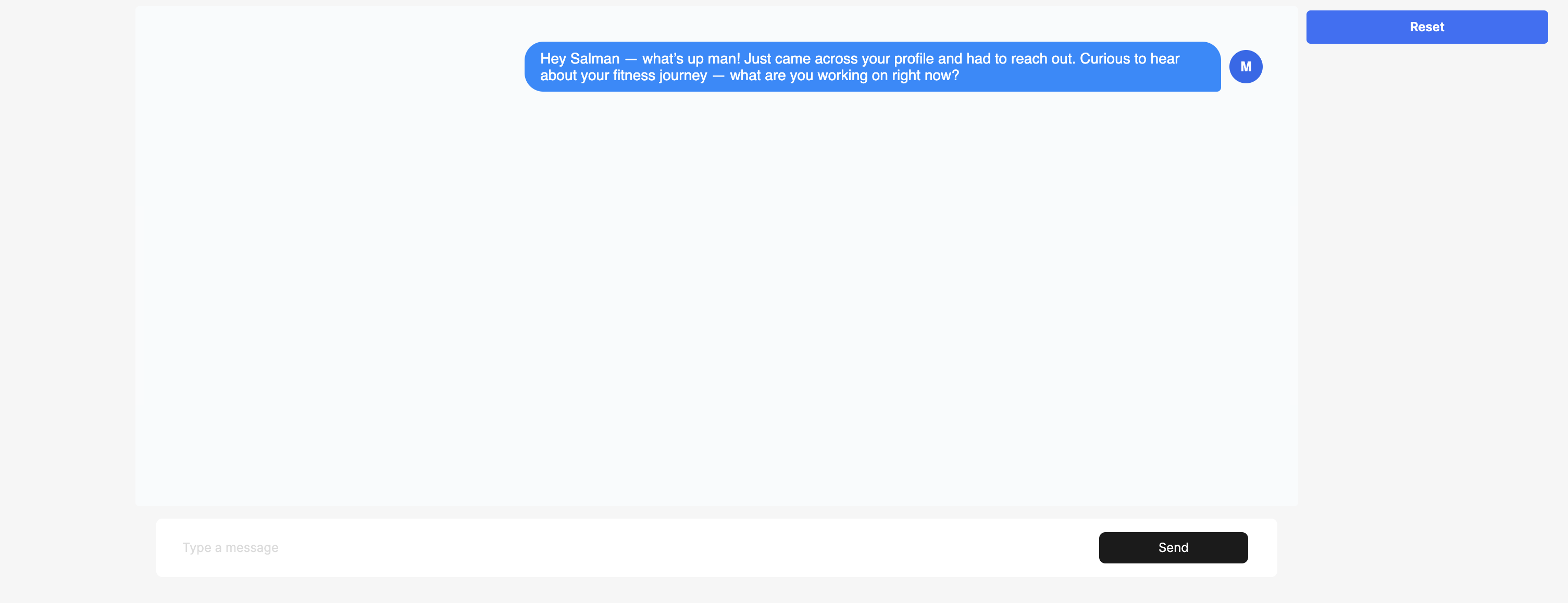
Arnio’s AI assistant helps you qualify leads, reply to inbound texts, and automate follow-ups — just like a real rep.
Step 1: Enable AI Replies
- When adding a new contact, you can enable AI by toggling the “Enable AI” switch during creation.
(/Screenshot2025-05-23at7.16.23PM.png)
Step 2: Configure Response Behavior
- Go to the Automation tab in your dashboard.
-
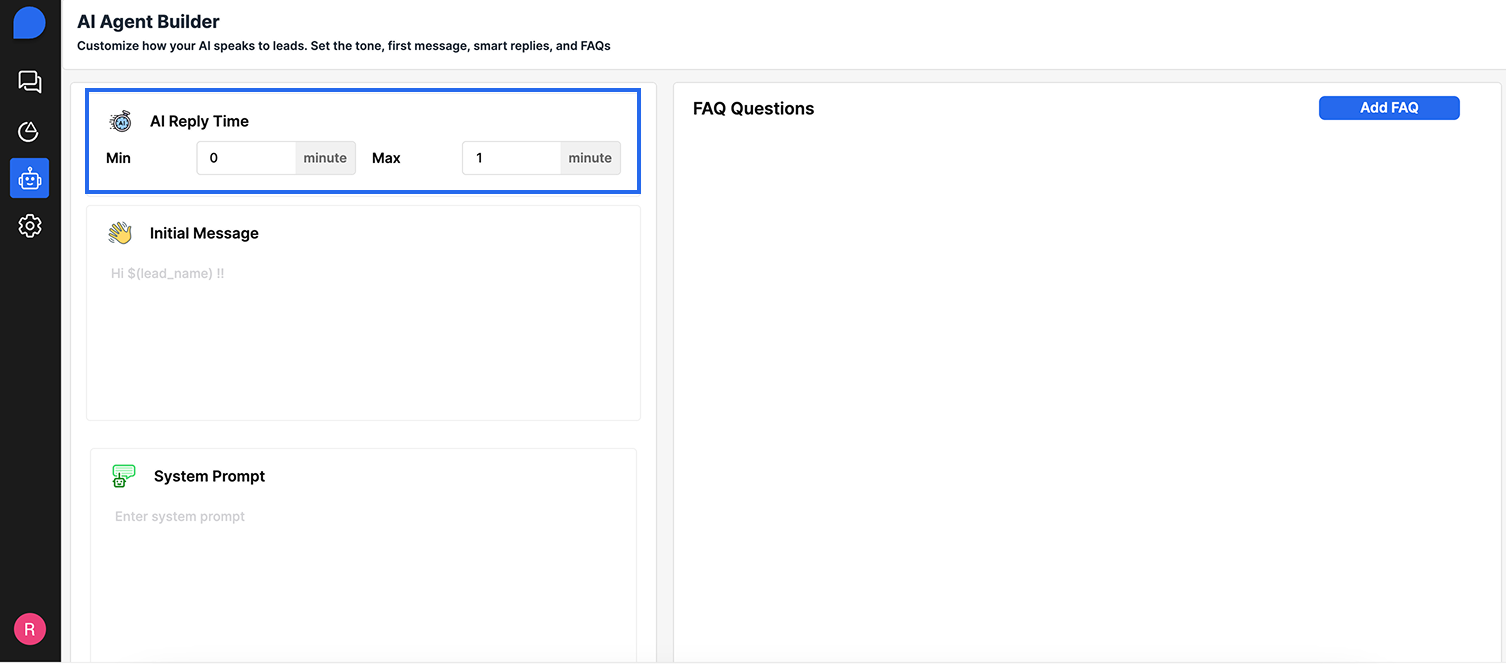
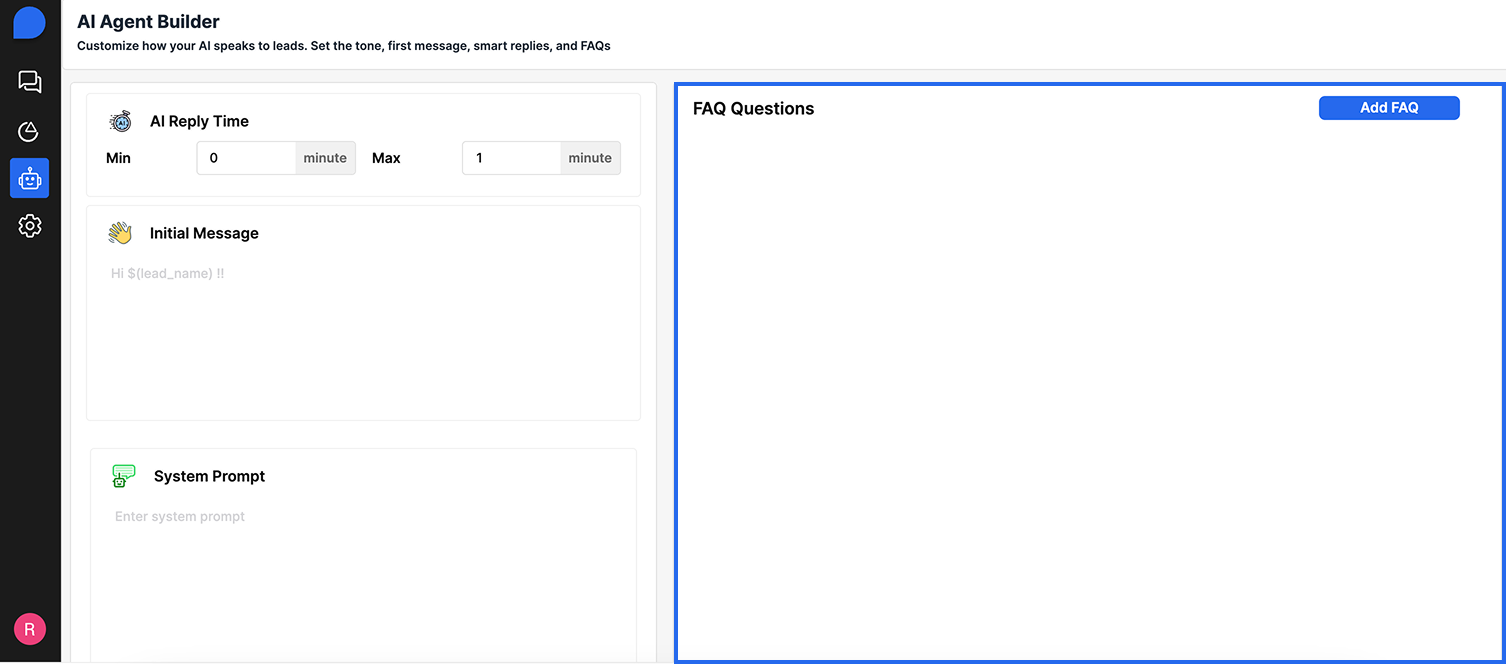
You’ll see AI Reply Time:
- Response Delay (in mintues) Simulates real human typing speed. We recommend 1-3 mins.
Step 3: Train Your AI with Prompts
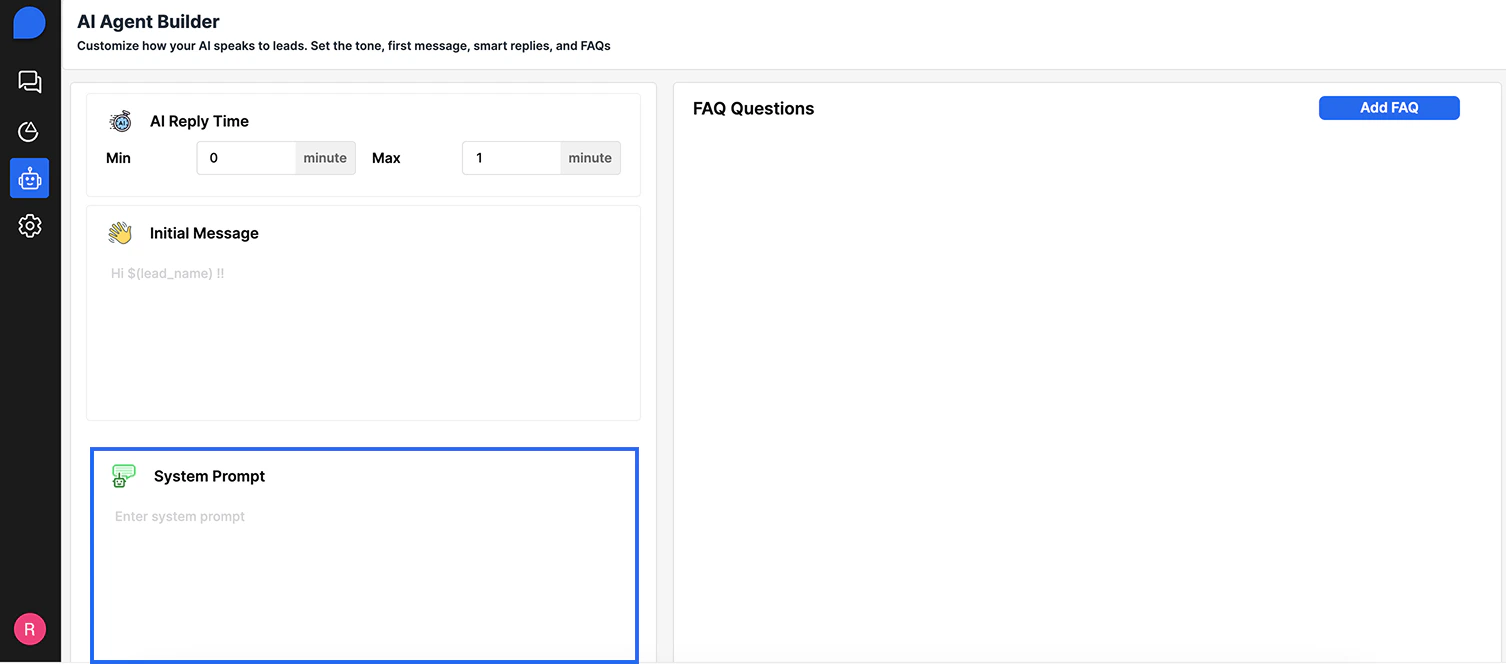
Arnio uses dynamic prompt training to make your AI sound like you. To set it up:-
- Navigate to **System Prompt ** (inside Automation Tab).
-
- Fill out the fields:
- Our Company Description – e.g. “We help auto dealers sell more vehicles via text”
- Common Questions Customers Ask – e.g. “What’s the price?”, “Is this still available?”, “Can I come see it today?”
- How You Want the AI to Respond – tone, format, length, escalation rules
- Click “Submit” to apply the updates instantly.
⚙️ FAQs
You can define when the AI should stop replying and notify a human. Example conditions:- When the lead asks to talk to a person
- When the conversation includes certain keywords (e.g., “call me” or “speak to someone”)
- After the AI has replied 3 times and no response
🧪 Test Before You Go Live
Before launching:- Access our staging portal to simulate conversation.
- Reach out to our support team to gain access.
- Tweak prompts or delays as needed