> ## Documentation Index
> Fetch the complete documentation index at: https://docs.arnio.co/llms.txt
> Use this file to discover all available pages before exploring further.
# AI Setup
> Guide to enabling AI Replies, configuring response windows and training prompts
# How to setup your AI
> Arnio's AI assistant helps you qualify leads, reply to inbound texts, and automate follow-ups — just like a real rep.
>
>  ## Step 1: Enable AI Replies
* When adding a new contact, you can enable AI by toggling the **“Enable AI”** switch during creation.
For existing contacts, open the conversation thread, click the slider icon on the top right to view contact details, and toggle **“Enable AI”** from there.
Once enabled, your AI will begin responding to new inbound messages automatically.
(/Screenshot2025-05-23at7.16.23PM.png)
You can disable AI at any time on a per-thread basis.
## Step 2: Configure Response Behavior
* Go to the Automation tab in your dashboard.
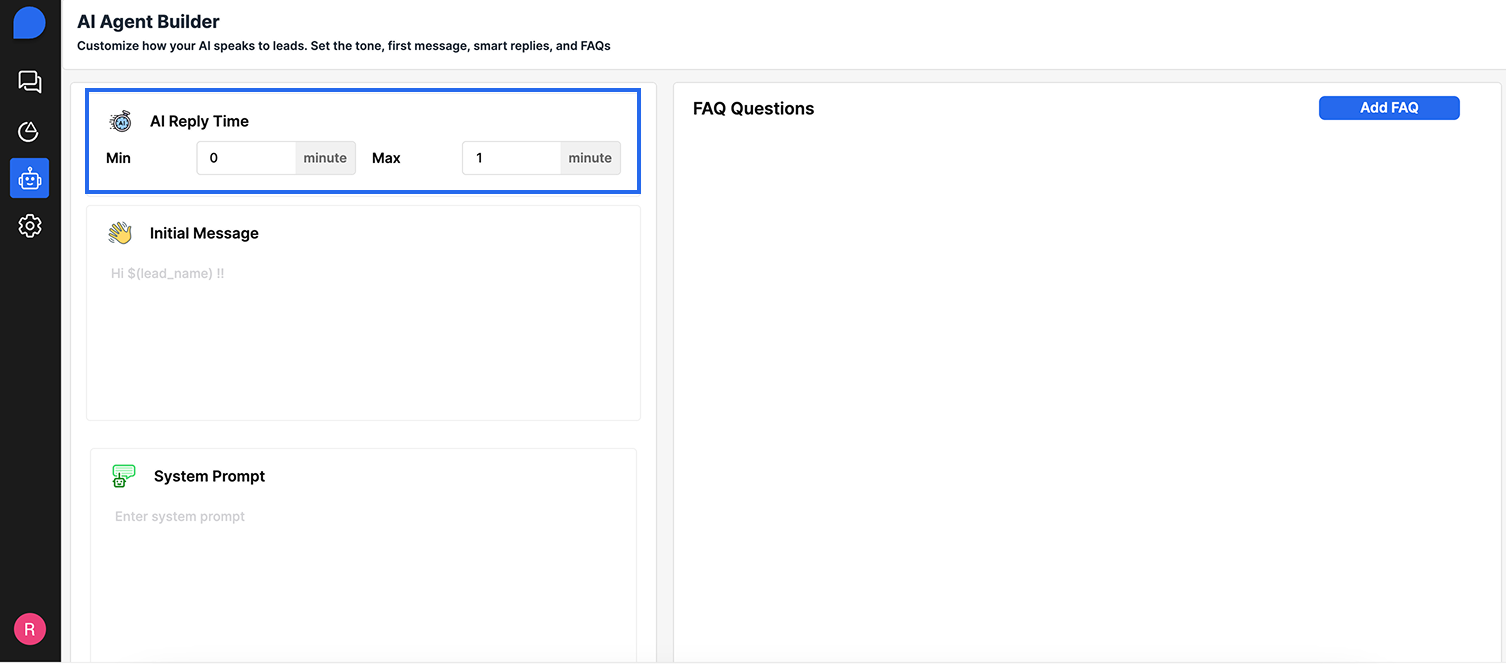
* You'll see **AI Reply Time:**
* **Response Delay (in mintues)**
Simulates real human typing speed. We recommend 1-3 mins.
## Step 1: Enable AI Replies
* When adding a new contact, you can enable AI by toggling the **“Enable AI”** switch during creation.
For existing contacts, open the conversation thread, click the slider icon on the top right to view contact details, and toggle **“Enable AI”** from there.
Once enabled, your AI will begin responding to new inbound messages automatically.
(/Screenshot2025-05-23at7.16.23PM.png)
You can disable AI at any time on a per-thread basis.
## Step 2: Configure Response Behavior
* Go to the Automation tab in your dashboard.
* You'll see **AI Reply Time:**
* **Response Delay (in mintues)**
Simulates real human typing speed. We recommend 1-3 mins.
 ## Step 3: Train Your AI with Prompts
Arnio uses dynamic prompt training to make your AI sound like you.
**To set it up:**
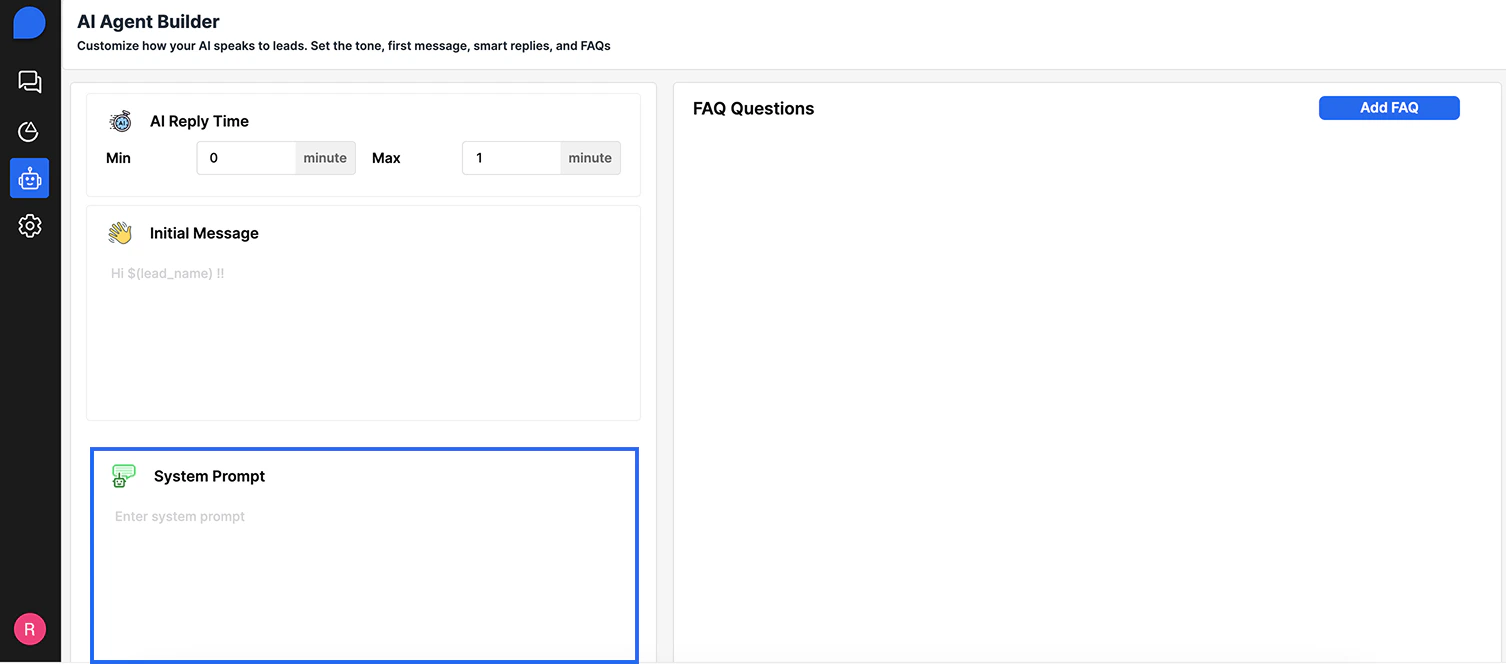
1. 1. Navigate to \*\*System Prompt \*\* (inside Automation Tab).
2. 2. Fill out the **fields:**
* **Our Company Description** – e.g. "We help auto dealers sell more vehicles via text"
* **Common Questions Customers Ask** – e.g. "What’s the price?", "Is this still available?", "Can I come see it today?"
* **How You Want the AI to Respond** – tone, format, length, escalation rules
3. Click **“Submit”** to apply the updates instantly.
## Step 3: Train Your AI with Prompts
Arnio uses dynamic prompt training to make your AI sound like you.
**To set it up:**
1. 1. Navigate to \*\*System Prompt \*\* (inside Automation Tab).
2. 2. Fill out the **fields:**
* **Our Company Description** – e.g. "We help auto dealers sell more vehicles via text"
* **Common Questions Customers Ask** – e.g. "What’s the price?", "Is this still available?", "Can I come see it today?"
* **How You Want the AI to Respond** – tone, format, length, escalation rules
3. Click **“Submit”** to apply the updates instantly.
 The more detailed your prompts, the more natural your AI becomes.
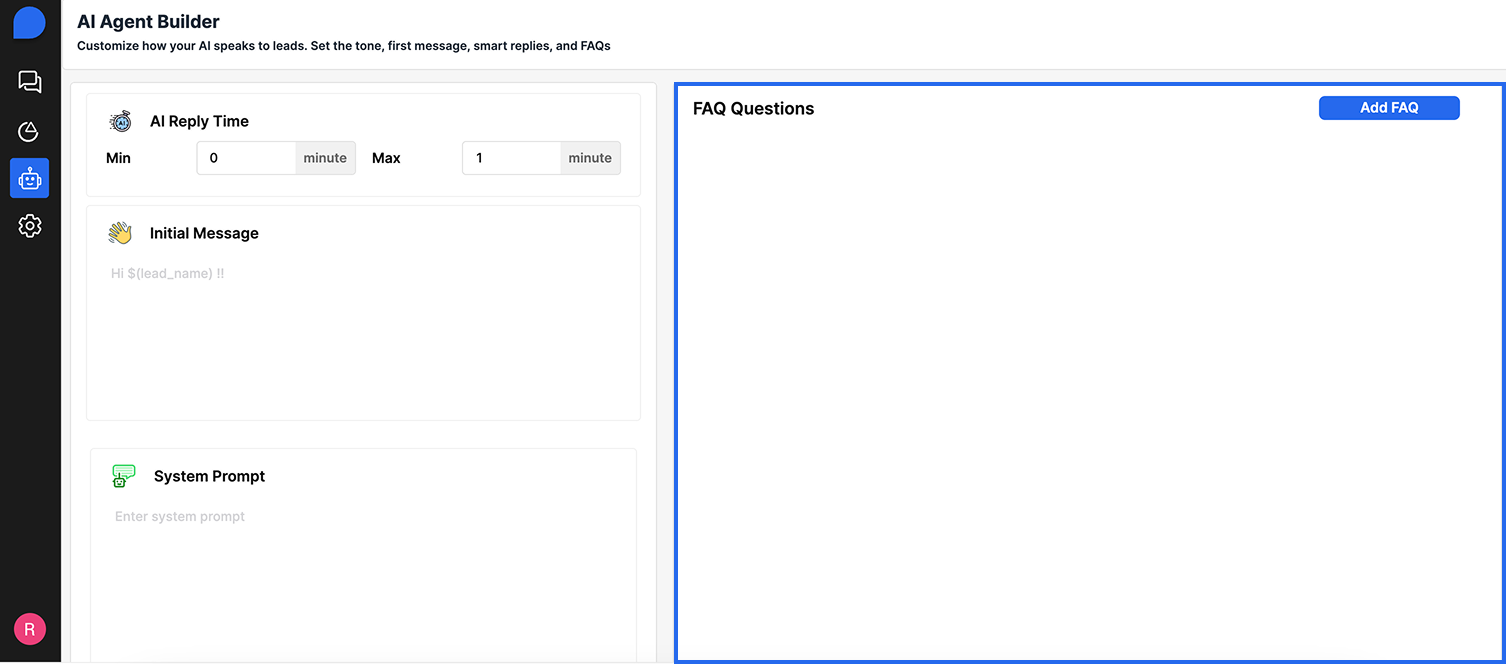
### ⚙️ FAQs
You can define when the AI should **stop replying** and notify a human. Example conditions:
* When the lead asks to talk to a person
* When the conversation includes certain keywords (e.g., “call me” or “speak to someone”)
* After the AI has replied 3 times and no response
The more detailed your prompts, the more natural your AI becomes.
### ⚙️ FAQs
You can define when the AI should **stop replying** and notify a human. Example conditions:
* When the lead asks to talk to a person
* When the conversation includes certain keywords (e.g., “call me” or “speak to someone”)
* After the AI has replied 3 times and no response
 ### 🧪 Test Before You Go Live
Before launching:
* Access our **staging portal** to simulate conversation.
* Reach out to our [support team ](mailto:hello@arnio.com)to gain access.
* Tweak prompts or delays as needed
### 🧪 Test Before You Go Live
Before launching:
* Access our **staging portal** to simulate conversation.
* Reach out to our [support team ](mailto:hello@arnio.com)to gain access.
* Tweak prompts or delays as needed